
Setting up CCS+ for use with Layover
Layover now uses calendar syncing within CCS+. Follow the steps below to set up calendar syncing.
These steps can be completed in the CCS+ app or on the website.
1.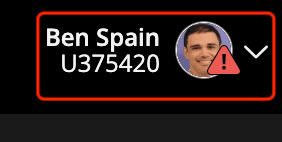
Go to your profile.
2.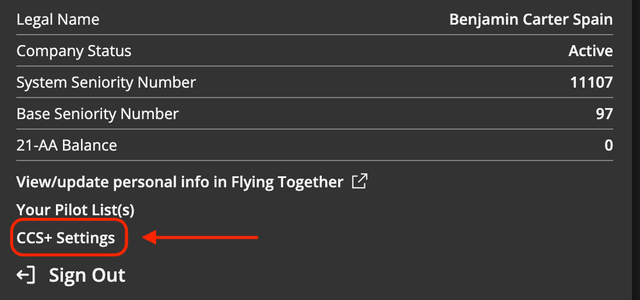
Go to CCS+ Settings.
3.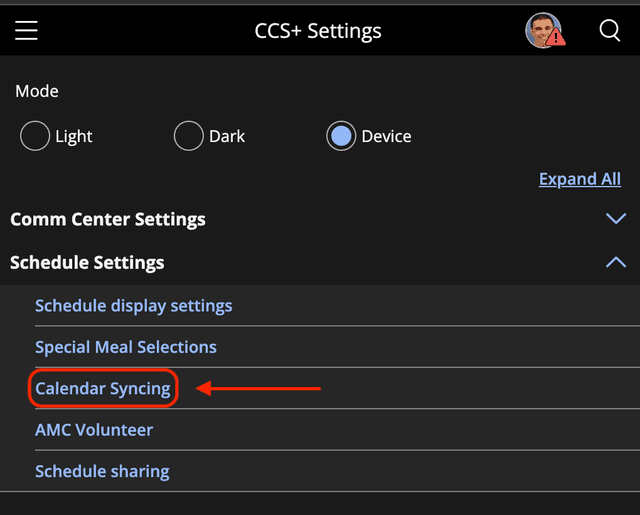
Go to Calendar Syncing under the “Schedule Settings” heading.
4.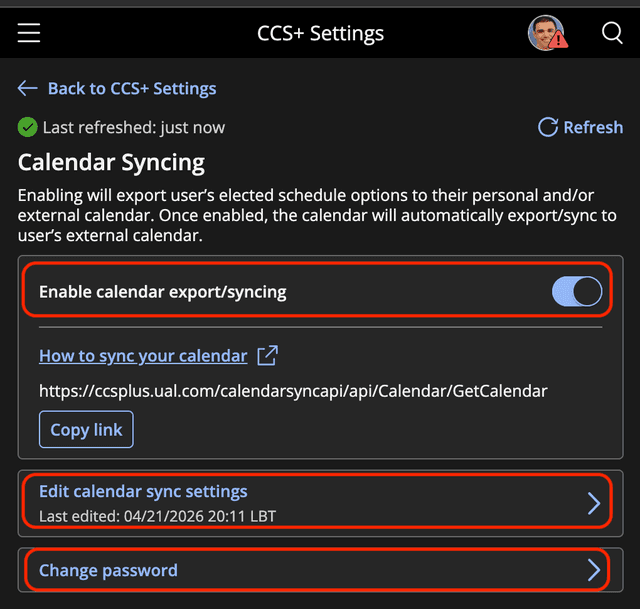
On the “Calendar Syncing” page:
- Enable calendar export/syncing.
- Set or change your password.
Do not use your Flying Together/company-wide password. - Select “Edit calendar sync settings.”
5.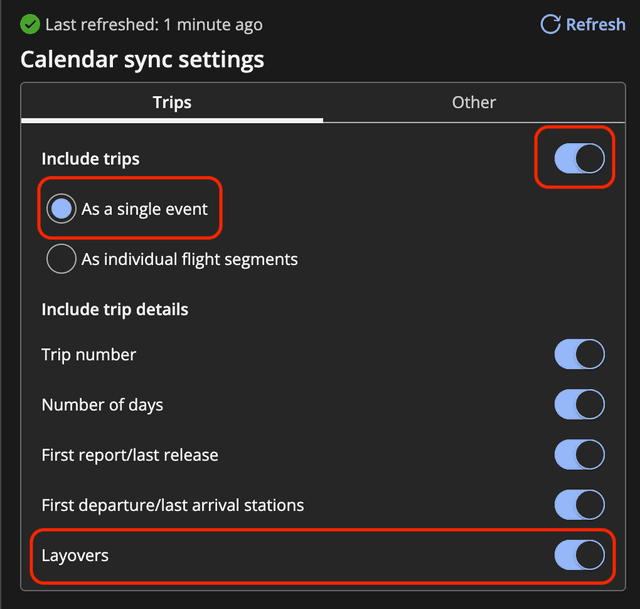
- Enable “Include trips.”
- Select “As a single event.” Currently, the CCS+ calendar does not include layover information when “As individual flight segments” is selected.
- Enable Layovers and any other items you would like, but Layovers is required for the Layover app.
6.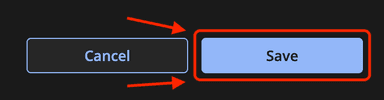
Save.
7.
Log in to the Layover app with your U number (no “U” required) and the password you just set.
Questions? Email me.Support: admin@layovers.app
© FlightStack LLC 2026